
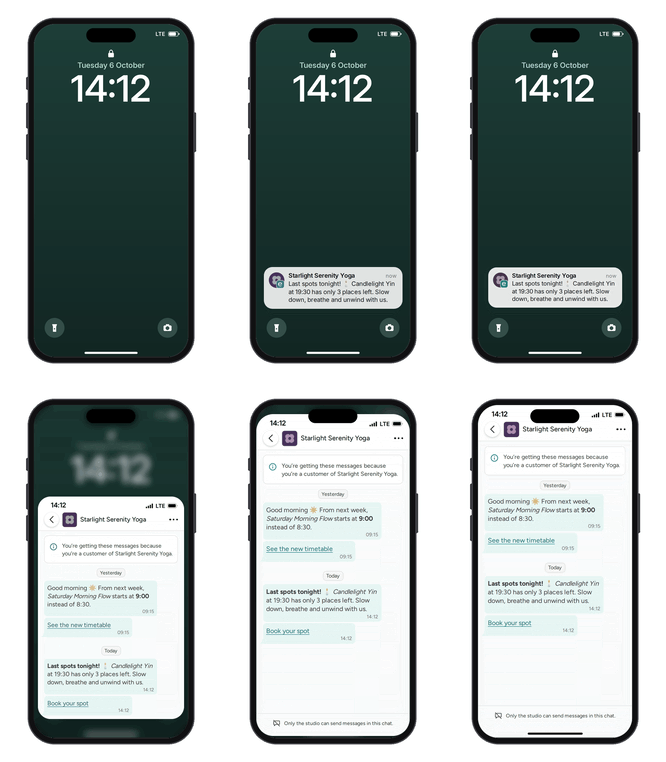
Some updates can't wait for someone to open their inbox. A class moves to a new time, a room is closed, or a few spots open up last minute. With in-app messages, you can send a short text update that your customers find in the Eversports app, and customers with push notifications turned on also see it as a notification on their phone.
Tip: Use emails for designed campaigns with more to say, like newsletters, offers or event announcements. Use in-app messages for short, timely updates that should be seen fast.
In this article you can find:
1. What are in-app messages?
2. Before you start
3. Creating an in-app message
Step 1: Choose the delivery type
Step 2: Choose the message type
Step 3: Check your recipients
Step 4: Write your message
4. Sending your message
5. What your customers see
6. In-app message insights
7. Tips for effective in-app messages
Frequently asked questions
1. What are in-app messages?
In-app messages are short, text-only messages that you send from the Eversports Manager to your customers in the Eversports app.
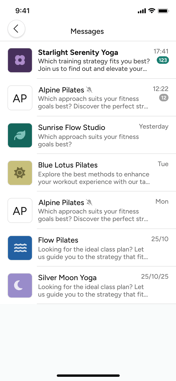
- Where customers find them: In Messages in the Eversports app. Each studio has its own chat, so all updates from your studio stay in one place.
- Phone notifications: Customers who have push notifications turned on also get a notification on their phone.
- One-way communication: Customers can read your messages but can't reply in the chat.
- Sender: Your message is sent under your brand name from your Branding settings.
Email or in-app message?
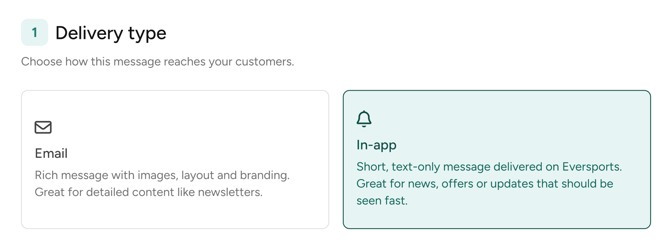
- Email: Rich message with images, layout and branding. Great for detailed content like newsletters.
- In-app message: Short, text-only message delivered on Eversports. Great for news, offers or updates that should be seen fast.
2. Before you start
- Communication Extension: In-app messages are part of the Communication Extension. This article answers common questions about pricing.
- Sender name: Customers see your venue name from Settings > Profile as the sender. If your company has several venues, you can set a brand name under Settings > Widgets > Widget Branding Settings, and customers will see that instead.
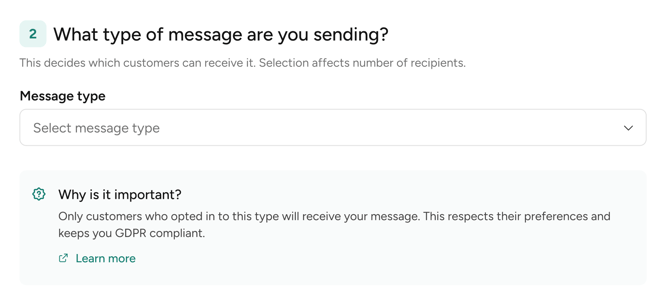
- Communication preferences: Every in-app message is either Marketing communication or Important updates & information. Only customers who opted in to the selected type receive your message. This respects their preferences and keeps you GDPR compliant. In this article you will find an explanation of both types.
3. Creating an in-app message
Go to Marketing > All contacts or Marketing > All messages and click Create a message.
Tip: In All contacts, you can first select the customers you want to reach and then click Create a message. Contacts without a valid email address or who haven't opted in to any messages can't be contacted.
Step 1: Choose the delivery type
Under Delivery type, select In-app.
Step 2: Choose the message type
Under What type of message are you sending?, choose one of the following:
- Marketing communication: Promote your studio to grow your business, for example new classes, special offers, events or newsletters.
- Important updates & information: Keep customers informed about things that affect their visits, for example schedule changes, closures, cancellations or policy updates.
The message type decides which customers can receive your message.
Step 3: Check your recipients
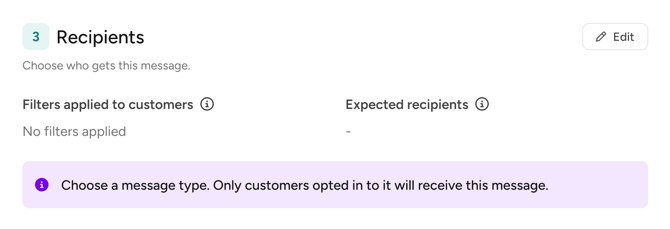
Under Recipients, you can see:
- Filters applied to customers: The opt-in filter set by your message type, for example Opted-in for Important updates & information.
- Expected recipients: Customers who match your filters, have a valid email address and opted in to the selected message type. You'll see the final number in All messages after sending.
To send the message to specific customers only, click Edit. Select the customers from the list and click Continue with [x] recipients.
Step 4: Write your message
Keep it short: one or two sentences, around 140 characters, with the key information first. That's what customers see in their phone notification.
In the message editor, you can:
- Format text in bold or italic.
- Add and remove links.
- Add Placeholders to personalize your message: {first name}, {studio name} and {widget link} (a link to your booking widget).
- Add Emojis.
- Undo and redo changes (Cmd/Ctrl + Z).
Messages can be up to 1,000 characters long. Once your message gets longer than a few sentences, you'll see a reminder that long messages are less likely to be read in full.
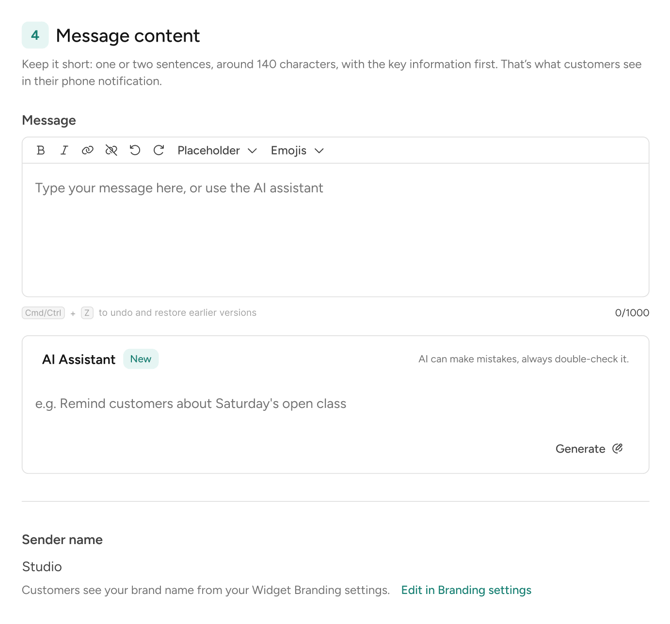
✨ AI Assistant (Beta)
Need help with the wording? Enter a short description of what you'd like to say in the AI Assistant field (for example, Remind customers about Saturday's open class) and click Generate. The AI writes a draft into the message editor that you can review and edit.
AI can make mistakes. Always check the generated text before sending, especially dates, times and prices.
4. Sending your message
When your message is ready, you can:
- Save as draft: Save your message and finish it later. You'll find it in Marketing > All messages > In-app messages.
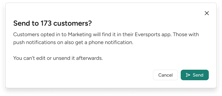
- Send: Before your message goes out, you'll see how many customers will receive it. Click Send to confirm.
Important: You can't edit or unsend an in-app message once it's sent. Double-check the content and recipients before you confirm.
If you leave the page with unsaved changes, you'll be asked whether to save your message as a draft first.
5. What your customers see
Phone notification
Customers with push notifications turned on get a notification showing your brand name and your message. Formatting is removed and longer messages are shortened, so put the most important information at the beginning.
In the Eversports app
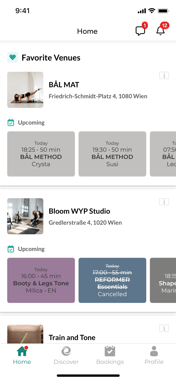
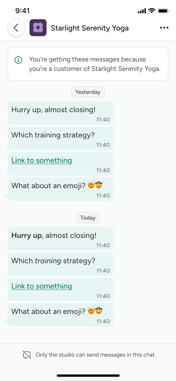
All recipients find your message in Messages in the Eversports app, even if push notifications are turned off. Customers open Messages with the message icon at the top of the Home screen. Your studio has its own chat, where your messages appear in full, including formatting and links. The chat shows that only your studio can send messages in it.
How customers can control what they receive
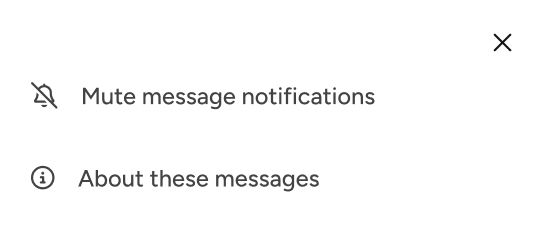
- Mute notifications: Customers can mute your studio's chat. Your messages still appear in the chat, but without a phone notification.
- Unsubscribe: Customers can unsubscribe using the link at the bottom of any email from your studio. This applies to both emails and in-app messages.
Booking notifications, like a class cancellation, always reach your customers and aren't affected by these settings.
Tip: If customers receive too many messages, they may mute your studio and miss your future updates. Send in-app messages when there is something your customers need to know soon.
6. In-app message insights
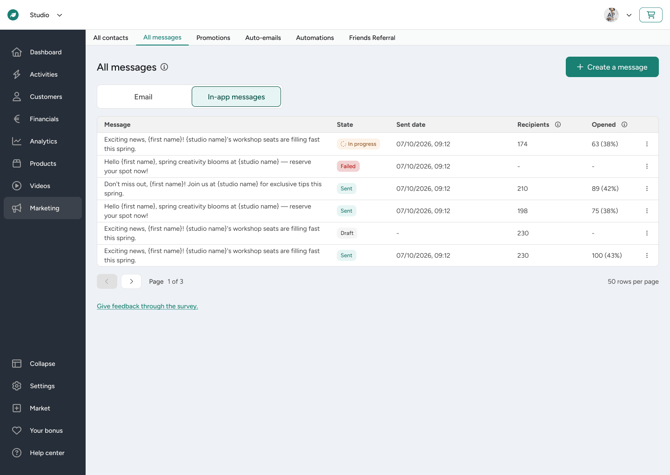
You can find all your in-app messages under Marketing > All messages > In-app messages. The overview shows:
- Message and State (Draft or Sent)
- Sent date
- Recipients: For sent messages, the customers it was sent to, fixed at the time of sending. For drafts, the expected recipients, which can change until you send.
- Opened: Customers who opened the message and saw it in full, from a phone notification or in the Eversports app.
Click a draft to continue editing it. Click a sent message to see its details:
- Overview: Status, sent date and time, number of recipients, sender name, delivery type and open rate.
- Content: The message as it was sent.
Tip: Opens can take a few days to come in, so check back later for the full picture.
7. Tips for effective in-app messages
- Lead with the key information: "Saturday yoga moves to 10:00" works better than a long greeting.
- Personalize: Start with {first name} to make the message feel personal.
- No need to sign off: Customers already see your brand name as the sender.
- Choose the right type: Use Important updates & information for operational changes and Marketing communication for offers and promotions.
- Target your audience: Only send messages to customers for whom the update is relevant.
Example messages:
- Hi {first name}, our Saturday yoga class now starts at 10:00. Everything else stays the same, see you there.
- Hi {first name}, {studio name} will be closed on 26 October for the national holiday. All bookings for that day have been moved.
- Hi {first name}, this week you get 20% off all class cards. Book in the app before Sunday to grab yours.
Frequently asked questions
Can customers reply to my in-app messages?
No. In-app messages are one-way. Customers can read them but can't reply in the chat.
Can I add images to an in-app message?
No. In-app messages are text-only. To share images or a full layout, create an email instead.
Can I change a message after sending it?
No. Sent messages can't be edited or unsent. If something was wrong, send a short follow-up message.
Why do my expected recipients differ from my number of contacts?
Only customers who opted in to the selected message type and have a valid email address can receive your message.
What if a customer has muted my studio?
They still receive your messages in their chat in the Eversports app, just without a phone notification.
We Value Your Feedback
Share your thoughts and suggestions with us! Your feedback is very important as it helps us improve this feature. Send an email to support@eversports.com, or schedule a short call to share verbal feedback directly with our product managers.