-1.png?height=40&name=Logo%20Eversports%20Horizontal%20(1)-1.png)
Missed classes and last-minute cancellations can disrupt your schedule and impact your community. Many providers want to gently educate customers to avoid this behaviour. Introducing a penalty is one effective way to do that.
With this beta version, you can start by sending automated emails to customers who late cancel or don’t show up. This helps set clear expectations while keeping things fair. At the same time, you stay in control. You can manually exclude specific customers from penalties to maintain strong relationships with your regulars or high-value members.
The extension is currently free during the beta phase and is configured at the company level.
✨ Key Benefits at a Glance
-
Educate customers about no-shows and late cancellations through automated emails
-
Stay flexible with multiple penalty rules tailored to your offerings
-
Keep full control by excluding customers when needed
-
Test and prepare your policy before introducing actual fees
📋 Before You Start
-
Attendance is based on the check-in process in your class sign-in. Customers must be marked as attended when they arrive.
👉 Learn more about how attendance tracking works: Understand the Sign-in
Important: Any customer who is not checked in will automatically be considered a no-show by the system
-
Emails are sent 24 hours after the class ends, giving you time to review and adjust attendance if needed
-
Think about how you want to apply your rules. For example:
-
“Send emails only for no-shows on unlimited memberships”
-
“Apply the rule to all class passes, but not to single drop-ins”
-
“Only notify customers for late cancellations”
-
🧑💻 How to Set Up the No-Show Penalty (Step-by-Step)
1. Go to “Market”
Navigate to the Market page and search for “No show & Late cancellation”
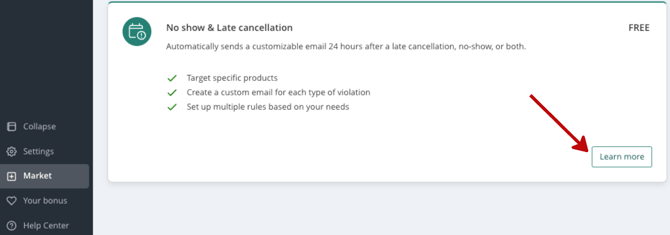
2. Enable the Feature Start configuration
Learn more about No show & Late cancellation: Click “Next Step”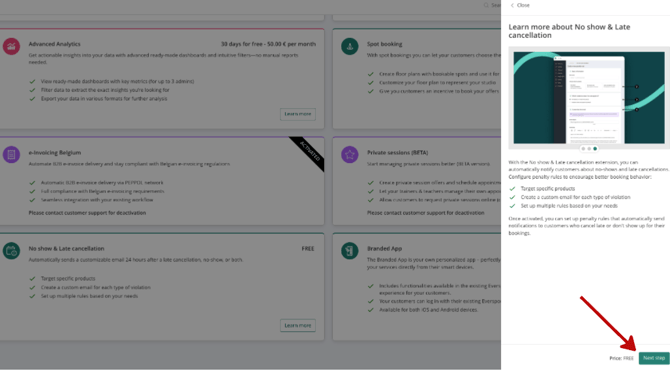
Payment information: The extension is for free. Click “Confirm”
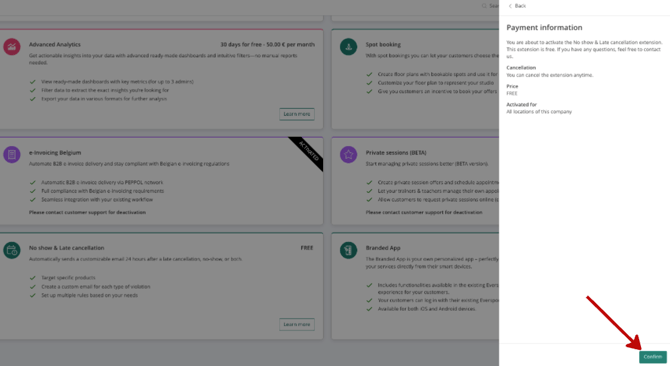
The No show & Late cancellation is now activated. Click “Use extension”. The extension is now active.
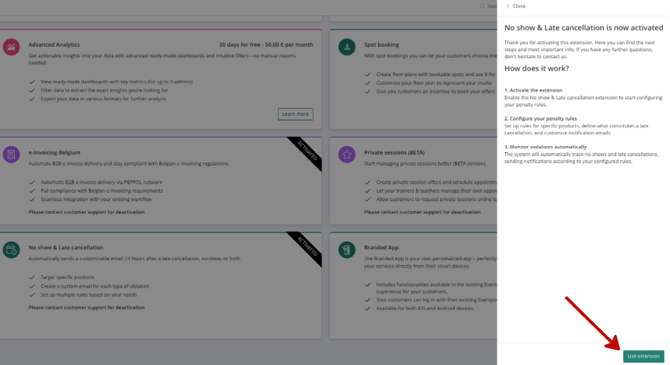
3. Start configuration
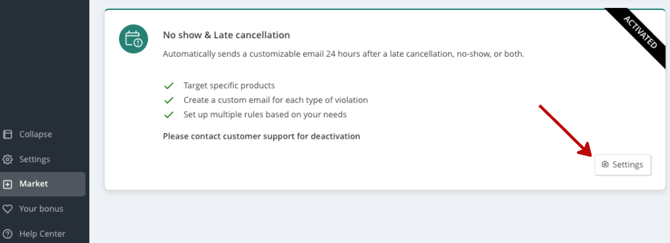
Click “Settings” to start configuring your penalty rules. The settings page allows you to manage all rules for no show & late cancellations. You can create multiple rules for variety of scenarios.
4. Create a New Rule
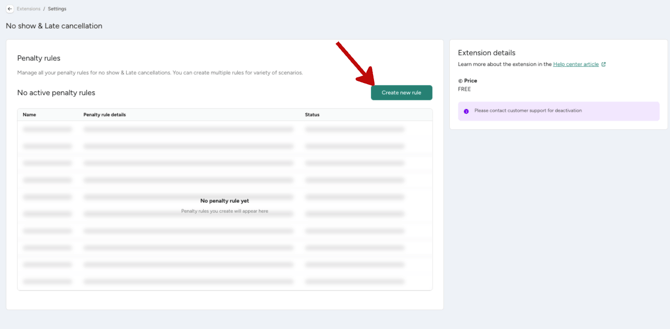
Click to create a new penalty rule and give it a name
5. Choose What to Penalise
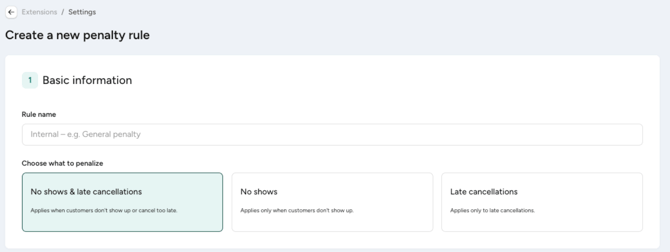
Decide if the rule applies to:
-
-
Only no-shows
-
Only late cancellations
-
Both
-
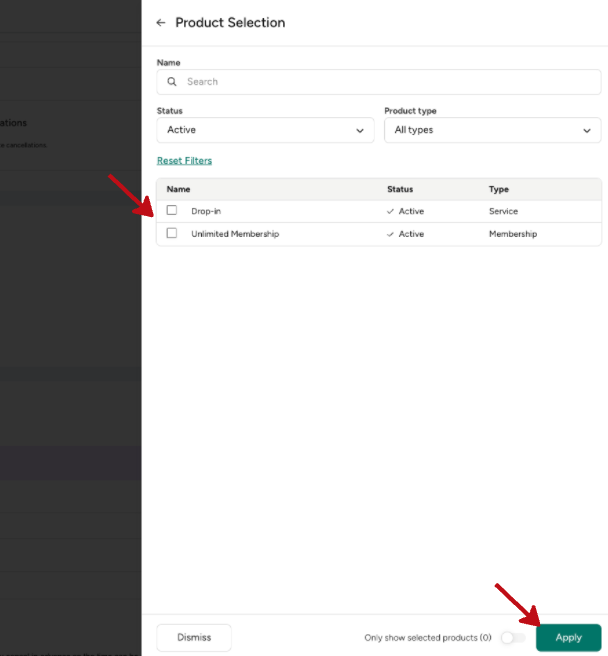
6. Select Applicable Products
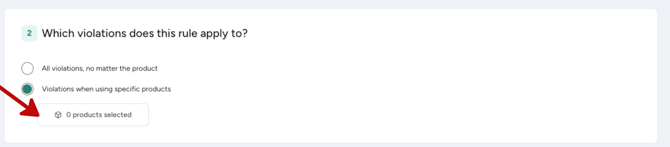
Choose which products (e.g. class passes, memberships) this rule should apply to. You can choose between:
-
All products
-
Specific products.
-
-
Click “products selected” to choose which products the rule should apply. You can choose as many products as you wish.
-
Click “Apply” to confirm the selection
-
7. Customise the email
-
-
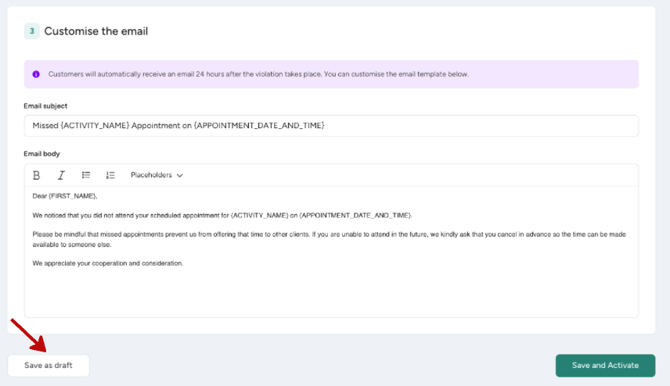
Define the email subject
-
Customise the email content
-
You have the option to add placeholders with specific information: customer first name, appointment data and time and activity name. This helps your customers to have a better context regarding when the no-show or late cancellation happened.
-
Note: The email is sent on behalf of your studio, not Eversports.
8. Save or Activate the Rule
Save as Draft if you’re not ready yet
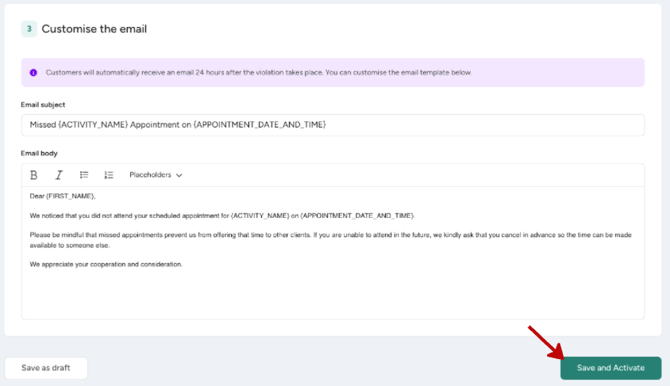
Save and Activate when you want the rule to be active. The rule is active immediately.
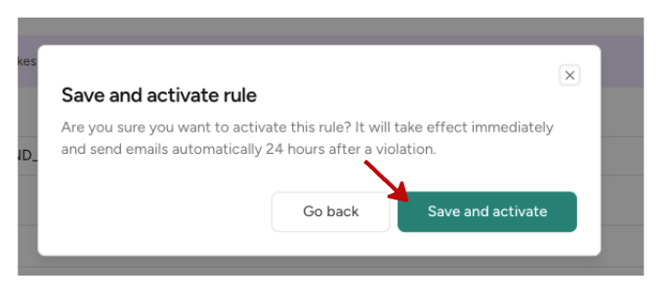
Confirm the activation:
You can see the newly created rule with status “active”
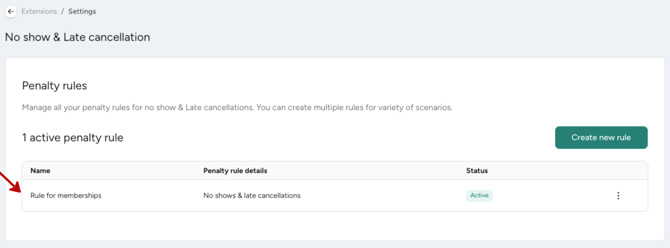
🎯 Configure Your Rules
-
You can create multiple penalty rules for different scenarios
-
Rules cannot overlap, so conflicting rules cannot be saved
-
Each rule can be managed individually
⚙️ Manage Rule Status
For each rule, you can:
-
Save as Draft
-
Set to Active
-
View its current status (Draft, Active, Deactivated)
-
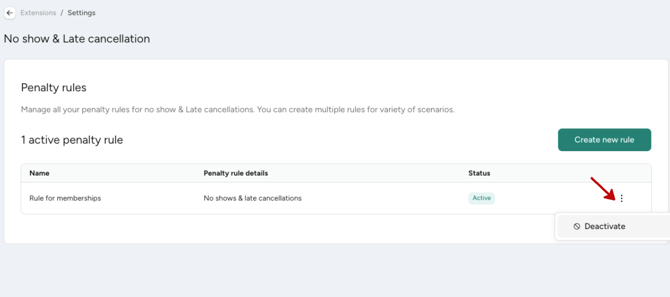
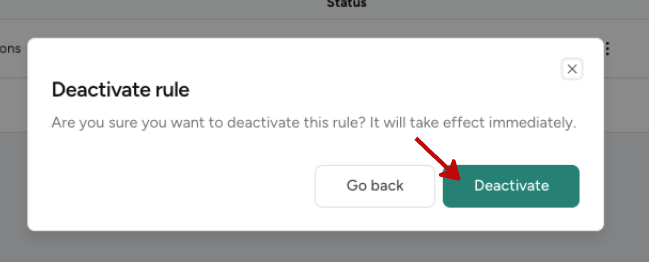
Deactivate the rule. You can click on the tree dots icon and click “Deactivate”. The rule will be deactivated immediately.
🔍 How the Email Process Works
-
Attendance is based on your check-in process in the class sign-in
-
The system checks your active penalty rules to determine what should trigger an email. This means:
-
If your rule includes no-shows, customers not checked in will be considered
-
If your rule includes late cancellations, those will also be considered
-
-
If a customer matches the conditions of an active rule:
-
They will receive an email 24 hours after the class ends
-
-
The email:
-
Is sent on behalf of your studio
-
Does not include any fee or invoice in this version
-
Focuses on informing and educating customers about their behaviour
-
-
The 24-hour delay gives you time to review attendance and make adjustments if needed, for example by removing a customer from the class to prevent the email from being sent.
❗Managing Exceptions (Important)
You remain in full control to keep things fair:
-
If you don’t want a customer to receive the email:
-
Go to the class sign-in
-
Cancel the appointment on behalf of the customer
-
-
This counts as a regular cancellation and prevents the email from being sent
This is especially useful for loyal customers or exceptional situations.
🎬 What Customers Experience
-
If they no-show or late cancel:
-
They receive an email 24 hours after the class
-
The email informs them about the missed booking
-
There is no charge or payment request in this version
-
💡 Tip – Use Cases
-
Introduce a soft policy before enforcing fees
-
Educate new customers about your studio rules
-
Maintain fairness while still allowing flexibility for regulars
-
Test different approaches before rolling out stricter penalties
❓ FAQs
-
What’s the difference between deactivated and deleted?Deactivation stops emails from being sent, but the rule remains visible with the status “deactivated.” There is no deletion option in this version.
-
How can I exclude a customer from receiving the email?
Cancel the customer’s booking from the class sign-in. This counts as a normal cancellation and prevents the email from being triggered. -
Is the extension set per venue or company?
The extension is configured at the company level.
🔮 What’s Coming Next
This beta version focuses on communication, and more is on the way:
Soon, you’ll be able to:
-
Define a penalty fee
-
Automatically send emails with a payment link
-
Require customers to manually complete the payment
In that version:
-
Email content will be standardised and not editable
-
Emails will be sent on behalf of Eversports
This beta is a first step to help you shape clear expectations with your community while keeping the flexibility to do what feels right for your studio.