-1.png?height=40&name=Logo%20Eversports%20Horizontal%20(1)-1.png)
In this article you can find:
✨ Key Benefits at a Glance
📋 Before You Start
🧑💻 How to Set Up the Widget Overview (Step-by-Step)
🌐 Share or Embed the Widget Overview
👥 What Your Customers Can See and Do
🛠 Keep in Mind When Updating Widgets
🔗 Where the Widget Overview Appears in Customer Journeys
⚙️ System-Generated Widgets
🔄 Transition from the Previous Widget Setup
✨ Key Benefits at a Glance
- One central link for all your offers
- Tabbed navigation to switch between different widget types
- Works like any other widget (embed or share via link)
- Used automatically in key product flows (e.g. emails, checkout)
📋 Before You Start
- Make sure you have created at least one widget (e.g. Schedule, Prices, Activities, Videos or Vouchers)
- You can create and manage widgets under Settings > Widgets
🧑💻 How to Set Up the Widget Overview (Step-by-Step)
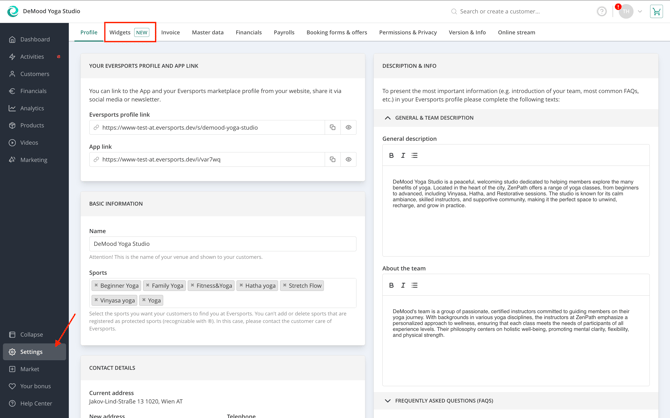
1. Go to Widget SettingsNavigate to Settings > Widgets
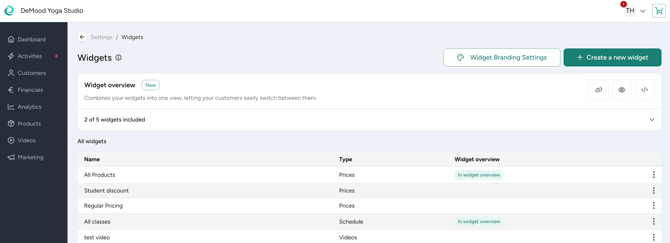
2. Locate the Widget Overview
You’ll find the Widget Overview listed as its own item
3. Include a Widget
- Click the three dots (⋯) next to a widget
- Select “Include in widget overview”
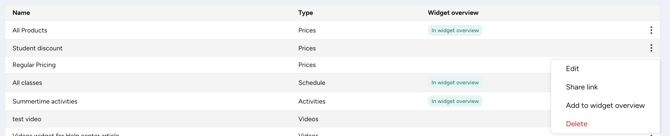
- To remove a widget: select “Remove from widget overview”
- To replace a widget: include another widget of the same type and confirm

You can include one widget per type, in this order:
-
- Schedule
- Prices
- Vouchers
- Activities
- Videos
6. Review Your Widget Overview
Expand the Widget Overview section to see which widgets are currently included and manage them as needed.

Changes are applied instantly - no additional save step is required.
🌐 Share or Embed the Widget Overview
The Widget Overview works like any other widget and can be used in two ways:
- Share via link
Copy the widget link and use it in emails, social media, or buttons on your website - Embed on your website
Add the widget code to your website to display it directly on a page

💡 Use the link for redirects and the embed code for website integration. Avoid embedding the link in an iframe — always use the provided code instead.
👉 For step-by-step instructions, see our general widget integration guide
👥 What Your Customers Can See and Do
When customers open your Widget Overview:
- They land on a single page with tabs, ordered as:
Schedule → Prices → Vouchers → Activities → Videos - They can switch between tabs without leaving the page
- Each tab behaves like the standalone widget:
- Book activities
- Purchase products or memberships
- Browse specials, vouchers, or videos
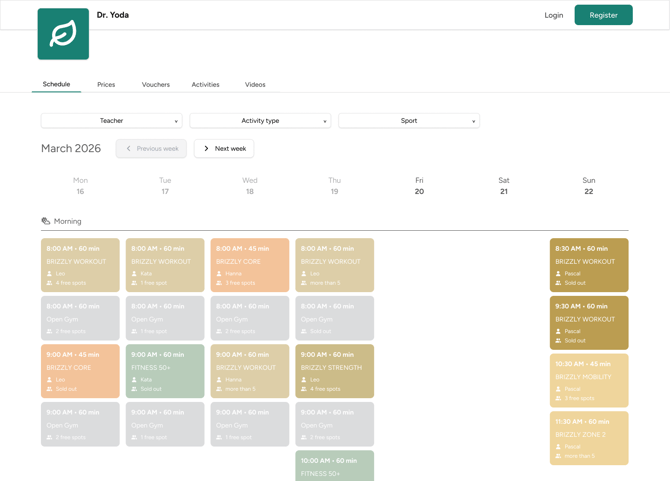
Feel free to leave out any widgets that are not relevant for your offers. E.g. if you don’t have Videos or don’t want to add them, we will not display this widget in your widget overview.
🛠 Keep in Mind When Updating Widgets
The Widget Overview always reflects the widgets you’ve included:
- Changes to an included widget (e.g. your selected Schedule or Prices widget) are automatically updated in the Widget Overview.
- If you remove or replace an included widget, it updates instantly.
- If no widgets are included, customers will see an empty state.
🔗 Where the Widget Overview Appears in Customer Journeys
The Widget Overview is used as a central entry point across several customer journeys:
- After checkout (bookings & purchases)
When a customer completes a booking or purchase (e.g. class, membership, voucher, or video), the “Go to Website” button on the confirmation page leads to your Widget Overview.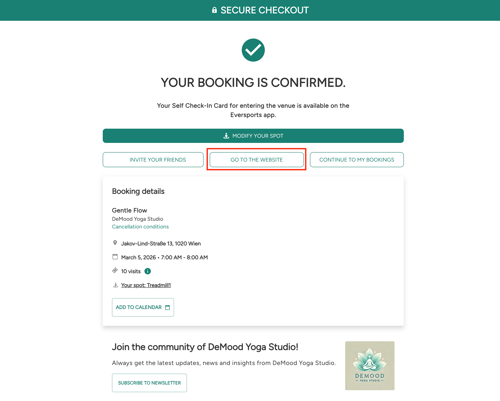
- In emails
If you use the widget link variable in emails (e.g. product expiration reminders or custom messages), these links direct customers to the Prices tab in your Widget Overview.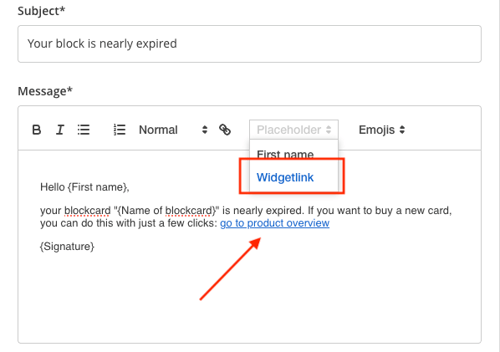
- After account activation
When invited customers activate their account, they are guided to the Widget Overview.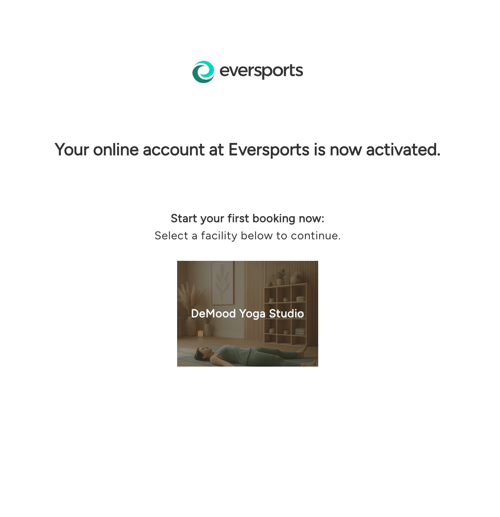
⚙️ System-Generated Widgets
To make setup easier, some widgets may already be created for you:
- These are labeled : “Created by Eversports: [Widget type]”.
- They may already be included in your Widget Overview.
- They use default settings based on your current setup.
We recommend reviewing these widgets and adjusting them if needed.
🔄 Transition from the Previous Widget Setup
The Widget Overview is now your central entry point for bookings and purchases.
If you previously used old Eversports widget:
- Some widgets may have been automatically created and included for you.
- We recommend reviewing your Widget Overview to ensure everything is set up as expected.
👉 Learn more about the transition from the previous widget setup