-1.png?height=40&name=Logo%20Eversports%20Horizontal%20(1)-1.png)
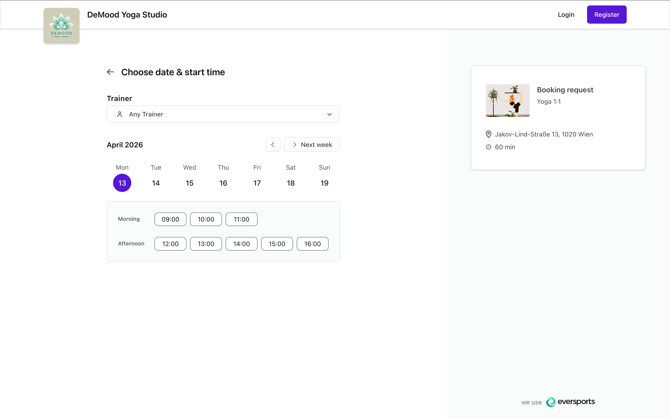
Private session availability determines which time slots your customers can see and request or book. This article is a deep dive into how availability is calculated. It explains how your settings - such as availability, session duration, booking rules, and assigned trainers or rooms - interact to create the final time slots shown to customers.
🔗 Related Setup Articles
🧠 How Availability Is Calculated
1. Start with Your Booking Availability
2. Apply Date-Specific Availability
3. Generate Possible Start Times
4. Check Session Duration
5. Apply Booking Rules
6. Check Teachers/Trainers and Rooms (If Assigned)
👤 Teacher/trainer availability
🏠 Room availability
7. Consider Buffer Time
8. Final Available Time Slots
👀 What This Means for Your Customers
🔍 Troubleshooting Missing Time Slots
Understanding this logic helps you to:
- Identify why certain time slots are not shown
- Adjust your setup more precisely
- Avoid unexpected booking behavior
If you’re looking to configure private sessions, check the related setup articles.
🔗 Related Setup Articles
To get the most out of this article, it helps to be familiar with how private sessions are set up:
- How to create and manage private sessions in your Eversports Manager
→ Learn how to create private sessions and define their basic setup - Make your private session offer available for online booking
→ Understand how availability is used for booking requests and customer booking
🧠 How Availability Is Calculated
The system calculates availability step by step.
At each step, invalid time slots are removed until only valid options remain.
💡 Tip:
If a time slot is missing, it is usually filtered out in one of the steps below.
1. Start with Your Booking Availability
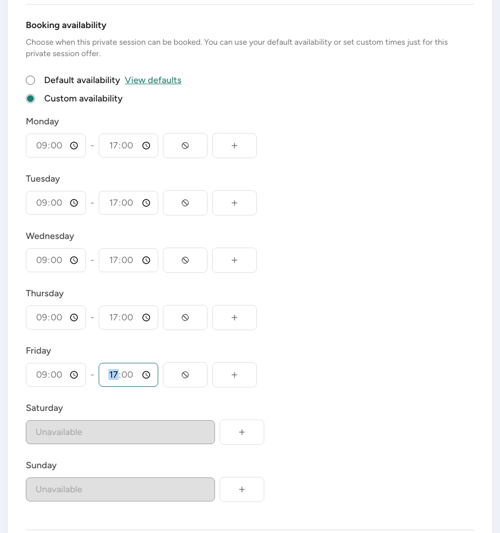
The system first determines when sessions are generally allowed.
It uses:
- Default availability (defined in your Private Sessions extension settings), or
- Custom availability (set directly on the private session offer)
You define:
- Days of the week
- One or more time ranges per day (e.g. 09:00–12:00, 14:00–18:00)
👉 If a day or time is missing completely, check your booking availability settings first.
2. Apply Date-Specific Availability

You can override your booking availability for specific dates using date-specific availability (defined in your Private Sessions extension settings)
💡 Examples:
- Weekly: Monday 09:00–17:00
→ Specific date: 09:00–12:00
✅ Only 09:00–12:00 is available - Weekly: Wednesday 10:00–18:00
→ Specific date: Closed
❌ No availability - Weekly: Sunday unavailable
→ Specific date: 10:00–14:00
❌ Still unavailable
Important:
Date-specific availability can only override existing availability, not create new availability on days that are unavailable in your booking availability.
👉 If availability looks different on a specific date, check your date-specific availability settings.
3. Generate Possible Start Times
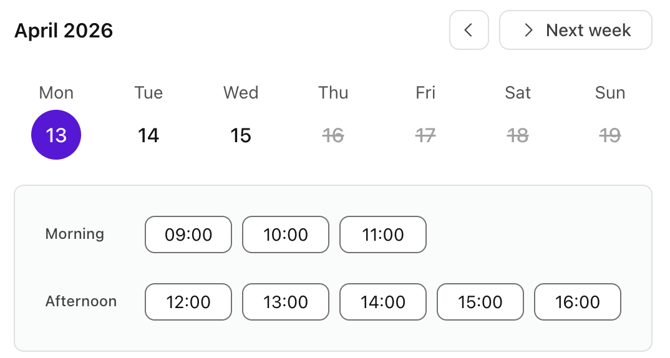
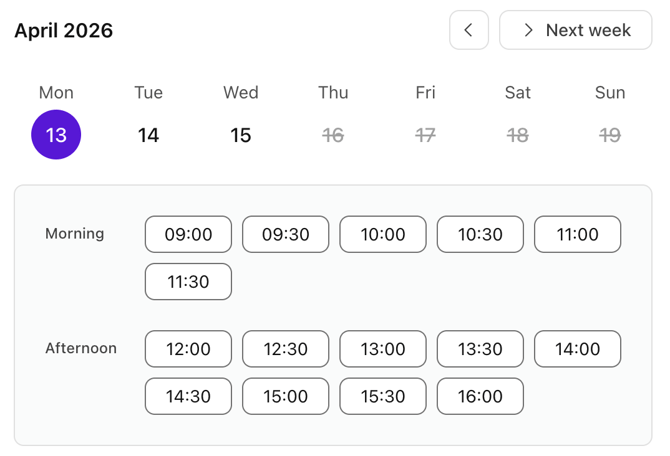
| Setting | Starting time options |
 |
 |
 |
 |
 |
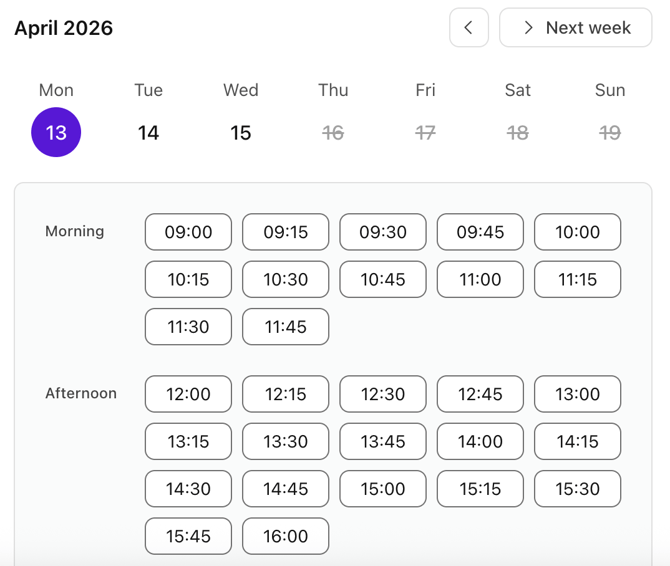 |
Within each time range, the system generates possible start times.
This depends on your appointment start time setting:
- Every hour → 09:00, 10:00
- Every 30 minutes → 09:00, 09:30
- Every 15 minutes → 09:00, 09:15, 09:30
👉 Start times always align with fixed intervals (e.g. :00, :15, :30, :45), regardless of when your availability starts.
For example, if your availability starts at 09:10, the first possible start time (every 30 minutes) will still be 09:30, not 09:10.
👉 If a specific start time (e.g. 09:15) is missing, check your start time interval settings.
4. Check Session Duration
Each session must fully fit into the availability window.
💡 Example:
Availability: 09:00–12:00
Duration: 60 minutes
✅ 10:00 → ends at 11:00
❌ 11:30 → ends at 12:30 (outside availability)
👉 If later time slots are missing, your session duration might not fit into the remaining time.
5. Apply Booking Rules
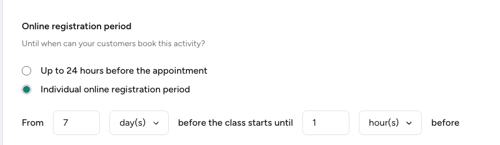
The system checks if a time slot can be booked based on your online registration period.
This defines a time window:
- How far in advance a session can be booked
- How close to the start time a booking is still allowed
💡 Example:
If you set:
- From 7 days before
- Until 24 hours before
A session:
- ✅ Can be booked up to 7 days in advance
- ❌ Cannot be booked less than 24 hours before it starts
👉 If a time slot is not visible:
- It may be too soon (too close to the start time), or
- Too far in the future (outside your booking window)
6. Check Teachers/Trainers and Rooms (If Assigned)
If your private session has assigned:
- Teachers/Trainers
- Rooms
The system checks whether they are available for the selected time slot.
A time slot is only available if:
- At least one teacher/trainer is available (for direct bookings, the teacher/trainer must also have teacher availability configured)
- At least one room is available
👤 Teacher/trainer availability
Teachers/trainers are evaluated based on their availability and existing bookings.
💡 Examples:
- Teacher/trainer already booked → ❌ not available
- Two teachers/trainers assigned, one free → ✅ available
- No teacher/trainer assigned → ✅ no restriction
- Direct booking: Assigned teacher/trainer has no teacher availability configured → ❌ Not available
- Booking request: Assigned teacher/trainer has no teacher availability configured → ✅ Customers can still submit a booking request
→ Learn more in Managing teacher/trainer availability for private sessions.
🏠 Room availability
By default, private sessions require the whole room. This means another activity or private session cannot take place in the same room at the same time.
If you configure Shared room settings, multiple private sessions may take place in the same room at the same time according to the room's shared room settings.
💡 Examples:
- The whole room is required: Room already used by another private session or group activity → ❌ Not available
- Shared room: Another private session is already taking place, but the room can still accommodate additional private sessions → ✅ Available
- Shared room: An overlapping private session requires The whole room → ❌ Not available
→ Learn more in Set Up Room Sharing Rules for Private Sessions
👉 If no teachers/trainers or rooms are assigned to the private session, availability is not restricted by them.
This means all time slots that pass the previous steps will remain available.
7. Consider Buffer Time
Buffer time adds a gap after each session.
This blocks an assigned teachers/trainers and/or room for additional time after the session.
Use this to:
- Avoid back-to-back bookings
- Allow time for preparation, cleanup, or breaks
💡 Example:
A 60-minute session with a 15-minute buffer means the teacher/trainer and/or room is occupied for 75 minutes.
👉 Note:
Buffer time only affects spacing between bookings — not availability itself.
💡 Example:
A 60-minute session can still start at 11:00 within a 09:00–12:00 window, even with buffer time, as long as the session ends by 12:00.
👉 If time slots near existing bookings are missing, buffer time may be blocking them.
8. Final Available Time Slots
Only time slots that pass all checks are shown.
Customers will see:
- Available dates
- Valid start times
- Grouped by morning, afternoon, evening
👀 What This Means for Your Customers
Customers will only see:
- Time slots that fit your availability
- Valid session durations
- No conflicts with teachers/trainers or rooms
- Only bookable times (based on your rules)
👉 This ensures customers can only request or book realistic time slots.
🔍 Troubleshooting Missing Time Slots
If expected time slots are not visible, check the following in order:
- Booking availability (day and time range)
- Start time interval
- Session duration
- Booking rules (booking window)
- Missing teacher/trainer availability (required for direct bookings)
- Teacher/trainer or room conflicts
- Buffer time between sessions
Going through these steps usually helps identify the cause quickly.