-1.png?height=40&name=Logo%20Eversports%20Horizontal%20(1)-1.png)
Once you have setup the booking request for a private session offer, customers start sending booking requests, you and potentially your teachers and trainers, if you allow them to do so, can manage them directly in your Private Session calendar. Booking requests are especially useful if:
- You want to avoid double bookings across teachers/trainers or rooms
- You have more complex scheduling setups (e.g. multiple teachers/trainers, rooms, or combinations)
- You need to coordinate schedules manually before confirming
- You want to screen or prioritise requests before accepting them
🔎 1. Where to find requests
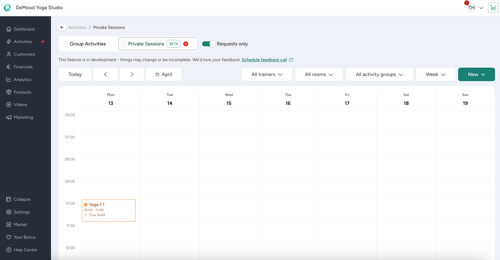
- Booking requests appear directly in your calendar
- They are visually distinguished from confirmed appointments
- You can use the “Requests only” toggle to focus on open requests
You’ll also be notified about new requests via:
- A notification badge in the sidebar
- The dashboard to-dos, linking you directly to open requests
- Email notifications, so you don’t miss incoming requests
💡 Pro-Tip: you can define the email inbox to which you want to receive the notifications to via the private session extension settings in the Market.
1.1 What information you see
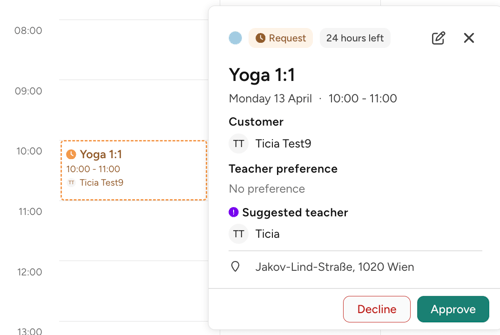
When opening a booking request, you can view:
- Customer name
- Requested date and time
- Selected or suggested teacher/trainer
- Assigned or suggested room
- A countdown showing how much time is left to respond
💡 Pro-Tip: If no teacher/trainer or room is selected, the system suggests one — you can always adjust it before confirming.
1.2 How to respond to requests
You can:
- Accept the request
→ The booking is confirmed and all participants are notified via email - Edit and accept the request
→ Adjust details (e.g. teacher/trainer, room, or time) before confirming - Decline the request
→ The customer is informed via email (you can add a message)
Example customer email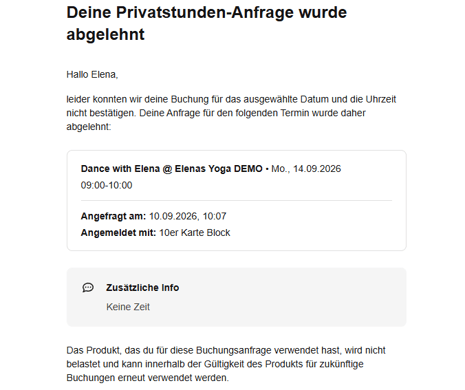
The unit will be credited back to the product with which the private session request was made. The invoice for the product will not be cancelled.
1.3 Important timing
- You have 24 hours to respond to each booking request
- If no action is taken, the request expires automatically
- Expired requests are removed from your calendar and cannot be answered anymore
- Customers are notified if their request expires
🎓 2. Letting your teachers and trainers respond to requests
If you want to give more autonomy to your teachers and trainers and be less involved in the process, you can allow them to manage booking requests. They will see booking requests in a similar way as administrators and leading employees in the private session calendar and are made aware of a new request via email and the notification icon in the Manager. To enable this permission, you can find the relevant setting in the online registration rules when creating or editing a private session offer:
If you choose “Any role”, employees, teachers, and external teachers with an active teacher profile can accept booking requests or indicate if they are not interested.
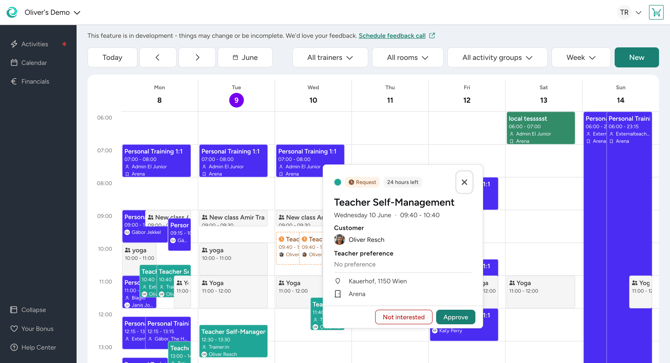
How the request is handled depends on whether the customer selected a specific teacher or not.
2.1 Booking requests without teacher & trainer preference
- All teachers & trainers who are allowed to offer private sessions will be informed about the new booking request (in addition to the studio).
- Any of these teachers or trainers can accept the request.
- Teachers or trainers can decline the request individually. However, the request is not automatically declined for the customer.
- If all eligible teachers or trainers decline the request, the studio is informed via email so an administrator or leading employee can:
- suggest an alternative, or
- decline the request completely.
- If nobody accepts the request before the 24-hour expiration deadline, the request is declined automatically.
2.2 Booking requests with teacher & trainer preference
- Only the selected teacher or trainer is informed about the booking request (in addition to the studio).
- Only this teacher or trainer can respond to the request (besides administrators and leading employees who can manage all requests).
- The teacher or trainer can accept the request as it is, but cannot edit it before accepting.
- If the preferred teacher or trainer declined the request, the studio is informed via email so an administrator or leading employee can:
- suggest an alternative, or
- decline the request completely.
- If nobody accepts the request before the 24-hour expiration deadline, the request is declined automatically.
2.3 Important limitation for teachers & trainers
Compared to administrators and leading employees, teachers cannot edit and accept booking requests in one step. Only administrators and leading employees can make changes to a request before confirming it.
If a teacher or trainer declines a request it is not declined automatically for the customer so that another teacher still has the chance to take over the private session appointment. Admins or leading employees can choose to decline the whole booking request at any time and inform the customer about it. If the request is not declined by and admin or leading employee within 24 hours, it is declined automatically and the customer informed.
🔗 Related Articles
- Make Your Private Session Offers Available for Online Booking
→ Understand how you can offer customers a way to book or request private sessions online - How private session availability works
→ Understand how available time slots are calculated and what affects them - Customizing your Activities widget
→ Learn how to display your private sessions on your website alongside other offerings