-1.png?height=40&name=Logo%20Eversports%20Horizontal%20(1)-1.png)
Missed classes and last-minute cancellations can disrupt your schedule and impact your community. If you want to gently educate customers to avoid this behaviour, introducing a penalty is one effective way to do that.
With the No-Show & Late Cancellation Penalty extension, you can create rules for no-shows and late cancellations and decide whether customers should receive:
- A warning email only
- Or an email with an automatically issued invoice for a penalty fee
The notification content is customised by you and sent on behalf of your studio. This helps you set clear expectations with customers while still keeping full control over exceptions and special cases.
Penalty rules are defined for the whole company. You have to enable the extension for each venue that you want the rules to be applied for individually.
✨ Key Benefits at a Glance
- Educate customers about no-shows and late cancellations through automated emails
- Automatically issue invoices for penalty fees
- Stay flexible with multiple penalty rules tailored to your offerings
- Keep full control by excluding customers when needed
- Manage penalty communication directly under your studio branding
📋 Before You Start
- Attendance is based on the check-in process in your class sign-in. Customers must be marked as attended when they arrive.
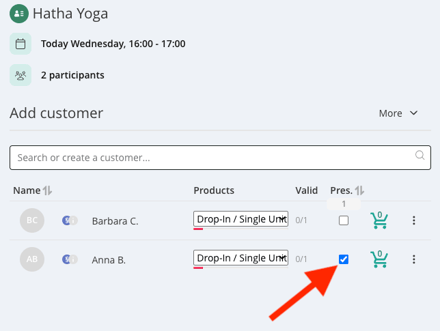
➡️ Learn more about how attendance tracking works: Understand the Sign-in
Important: Any customer who is not checked in (marked as attended) will automatically be considered a no-show by the system
- Emails and invoices are sent 24 hours after the class ends, giving you time to review and adjust attendance if needed
- If you plan to charge penalty fees, we strongly recommend updating your Terms & Conditions so your studio policy clearly covers no-show and late cancellation fees
- Think about how you want to apply your rules. For example:
- “Send warning emails only for no-shows on unlimited memberships”
- “Charge a €10 fee for late cancellations on evening classes”
- “Apply fees only to premium memberships”
🧑💻 How to Set Up the No-Show Penalty (Step-by-Step)
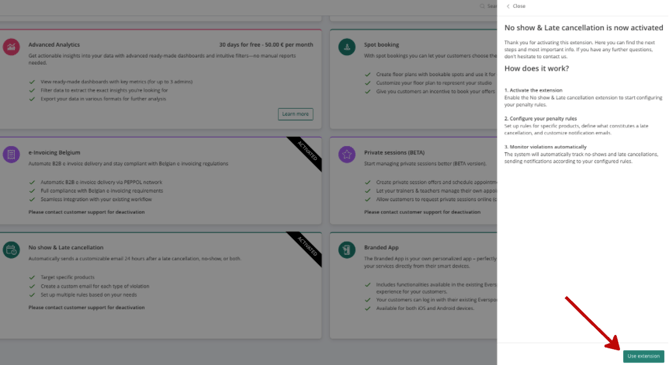
1. Go to “Market”
Navigate to the Market page and search for “No-show & Late cancellation”
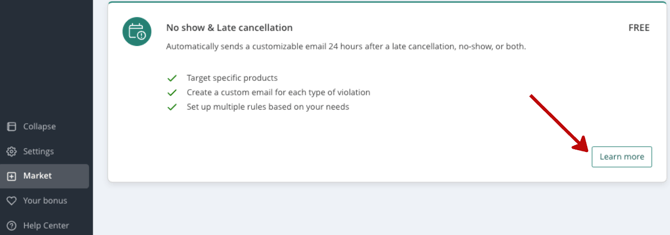
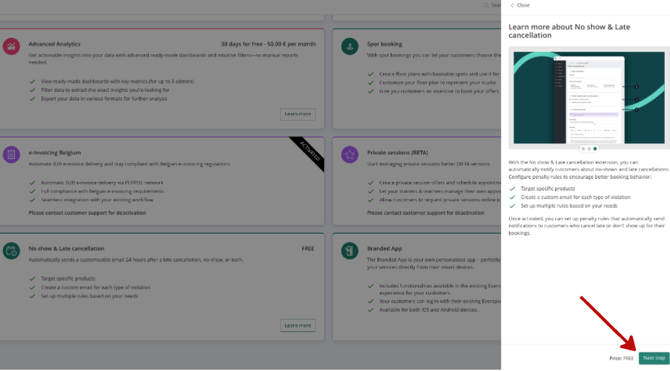
Learn more about No-show & Late cancellation: Click “Next Step”
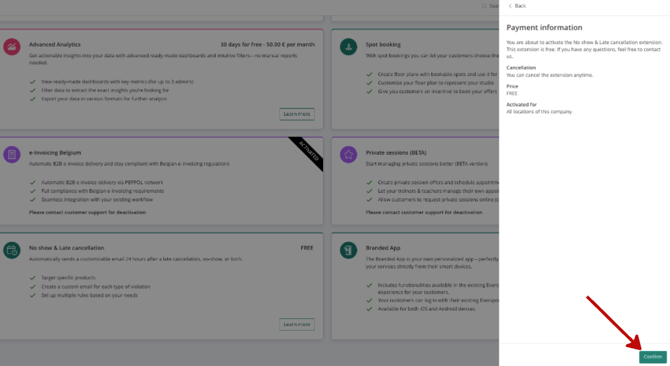
Payment information: The extension is for free. Click “Confirm”
The No-show & Late cancellation is now activated. Click “Use extension”. The extension is now active.
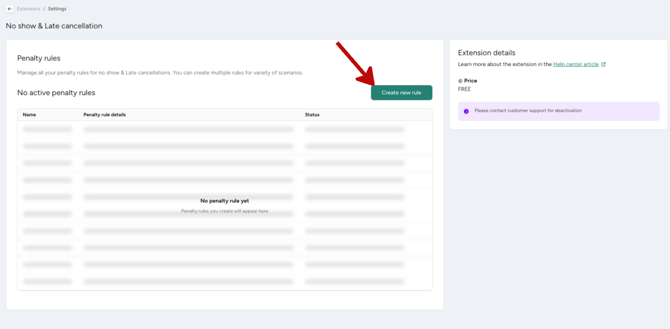
3. Start configuration
Click “Settings” to start configuring your penalty rules. The settings page allows you to manage all rules for no-show & late cancellations. You can create multiple rules for a variety of scenarios.
.png?width=670&height=243&name=image-20260505-120455%20(2).png)
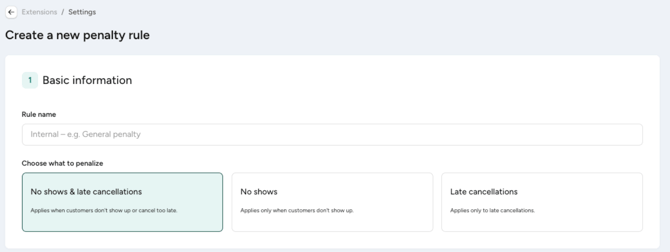
5. Choose What to Penalise
Decide if the rule applies to:
-
Only no-shows
-
Only late cancellations
-
Both
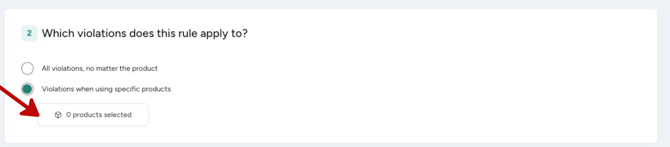
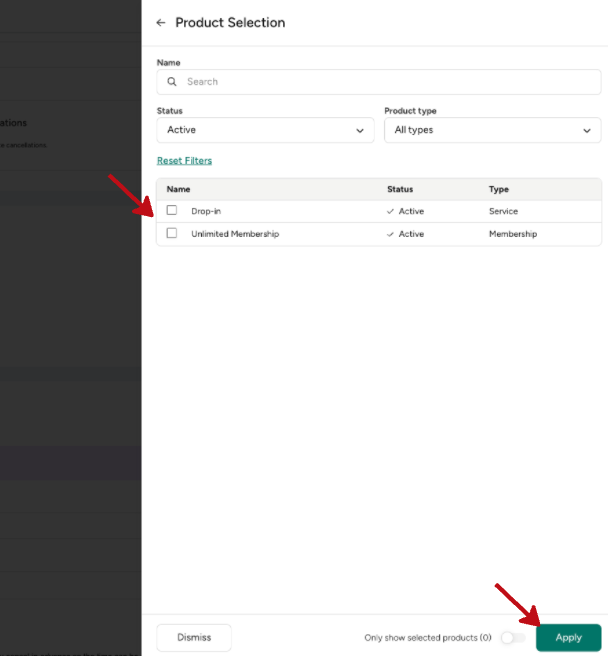
6. Select Applicable Products
Choose which products (e.g. class passes, memberships) this rule should apply to. You can choose between:
- All products
- Specific products.
- Click “products selected” to choose which products the rule should apply. You can choose as many products as you wish.
- Click “Apply” to confirm the selection
7. Choose How to Penalise Customers
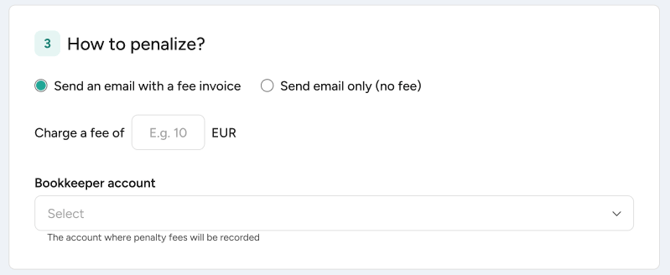
Decide whether customers should receive:
-
Email only
-
Email with invoice. If you choose “Email with invoice”, you must define:
- The fixed fee amount in your venue’s currency
- The bookkeeping account used to register the revenue
8. Customise the email
-
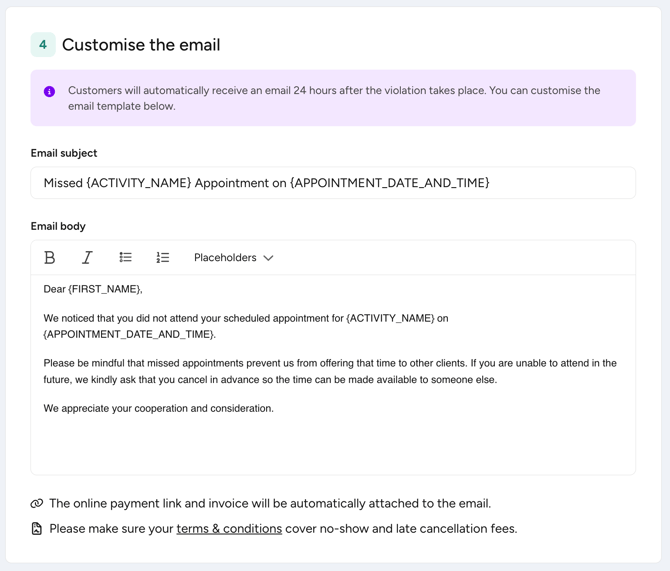
Define the email subject
-
Customise the email content
- You have the option to add placeholders with specific information: customer first name, appointment date and time, activity name, fee and your studio name. This gives you the flexibility to personalise the email content while giving your customers information about the missed appointment.
Important to note:
- The email is sent on behalf of your studio, not Eversports.
- The payment link is automatically added to the email and cannot be removed
9. Save or Activate the Rule
- Save as Draft if you’re not ready yet – the notifications are not sent if the rule is in “draft”
- Save and Activate when you want the rule to be active. The rule is active immediately. This means that the violations (no-show or late cancellation) happening after the rule is activated will receive a notification.
You can see the newly created rule with status “active”
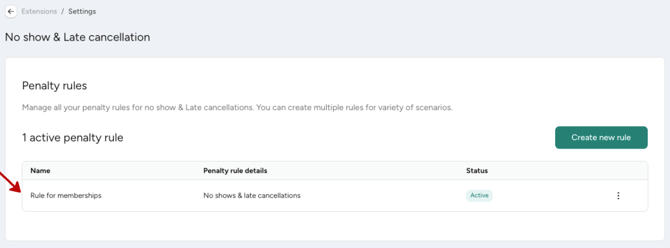
Die neu erstellte Regel findest du mit dem Status "aktiv".
✏️ Edit Existing Rules

- The rule name
- What should be penalised
- The selected products
- The penalty type (email only or email with invoice)
- The fee amount and bookkeeping account
- The email content
After making changes:
- Save to apply the changes and then click on Save and Activate.
❌ Deactivate Existing Rules
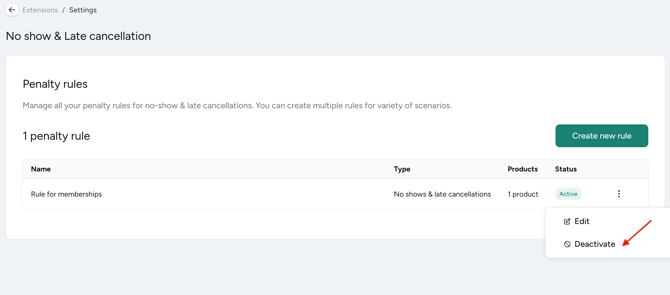
- You can also Deactivate a rule at anytime. You can click on the tree dots icon and click “Deactivate”. The rule will be deactivated immediately.
🎯 Configure Your Rules
- You can create multiple penalty rules for different scenarios
- Rules cannot overlap, so conflicting rules cannot be saved. For example: if you create a 10€ penalty for all your products, you cannot create another rule for a specific product because this product is already part of another active rule.
- Each rule can be managed individually
⚙️ Manage Rule Status
For each rule, you can:
- Save as Draft
- Set to Active
- Deactivate the rule
- View its current status (Draft, Active, Deactivated)
🔍 How the Rule & Penalty Process Works
→ The rule can consider no-shows, late cancellations or both:
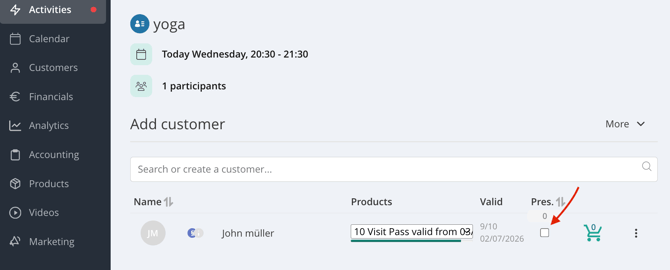
- If you want to penalise customers with a no-show, customers not marked as attended will be considered (customers are not marked as attended if the “presence” checkbox is not selected)
- If you also want to penalise customers with a late cancellation, those will also be considered
The penalty process checks your active penalty rules to determine what should trigger a notification. If a customer matches the conditions of an active rule, they will receive an email 24 hours after the class ends
- If the rule is set to “Email Only”, the customer receives a notification email without an invoice or payment link
- If the rule is set to “Email with a fee invoice”, the customer receives a notification email with the invoice attached and a payment link to settle the fee online. This payment link:
- Redirects the customer to the payment page
- Allows the customer to choose a payment method and complete the payment manually
ℹ️ The payment link is always included in the email and cannot be removed
 Managing Exceptions (Important)
You remain in full control to keep things fair.
You have a 24-hour window before the penalty notification is sent. During this time, you can review attendance and exclude customers if needed.
If you don’t want a customer to pay the fee:
- Go to the class sign-in
- Sign out the customer from the specific appointment
Signing out prevents the penalty notification from being sent. This is especially useful for loyal customers, exceptional situations (example: your customer is feeling sick) or simple manual attendance corrections
👨👩👧 Family Accounts
Penalties work a bit differently when the customer is part of a family account.
-
The email and the invoice go to the family owner, because the owner holds the account and the payment details
-
The email is addressed to the family member who missed the class, so the owner can see who the fee is for
-
Only the family owner can see the invoice and open the payment link. The family member will not find it in their own account
To skip the penalty, sign the family member out of the appointment within 24 hours, same as for any other customer.

💡 Tip – Use Cases
- Introduce a soft policy before enforcing fees
- Charge fees for premium or limited-capacity classes
- Apply different penalty policies for memberships and drop-ins
- Reduce repeated no-shows during peak hours
- Maintain flexibility for regular customers while protecting your schedule
❓ FAQs
What’s the difference between deactivated and deleted?
Deactivation stops emails and invoices from being sent, but the rule remains visible with the status “deactivated.” There is no deletion option.
How can I exclude a customer from receiving the penalty?
Sign-out the customer within 24 hours to avoid the penalty notification to be sent.
Is the extension set per venue or company?
Penalty rules are defined for the whole company. You have to enable the extension for each venue that you want the rules to be applied for individually.
Can customers be blocked from booking if they don’t pay the fee?
No. At the moment customers cannot be blocked from further participations if they violated any rules.
How do penalties work for family accounts?
The email and invoice go to the family owner, because the owner holds the account and the payment details. The email is addressed to the family member who missed the class. Only the family owner can see the invoice and open the payment link. To skip the penalty, sign the family member out of the appointment within 24 hours, same as for any other customer.