
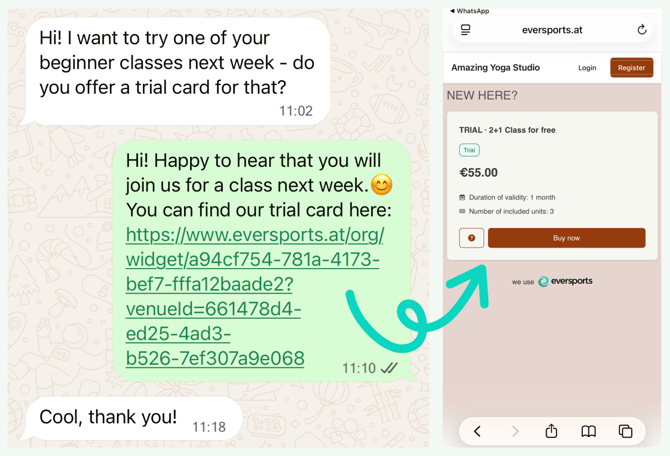
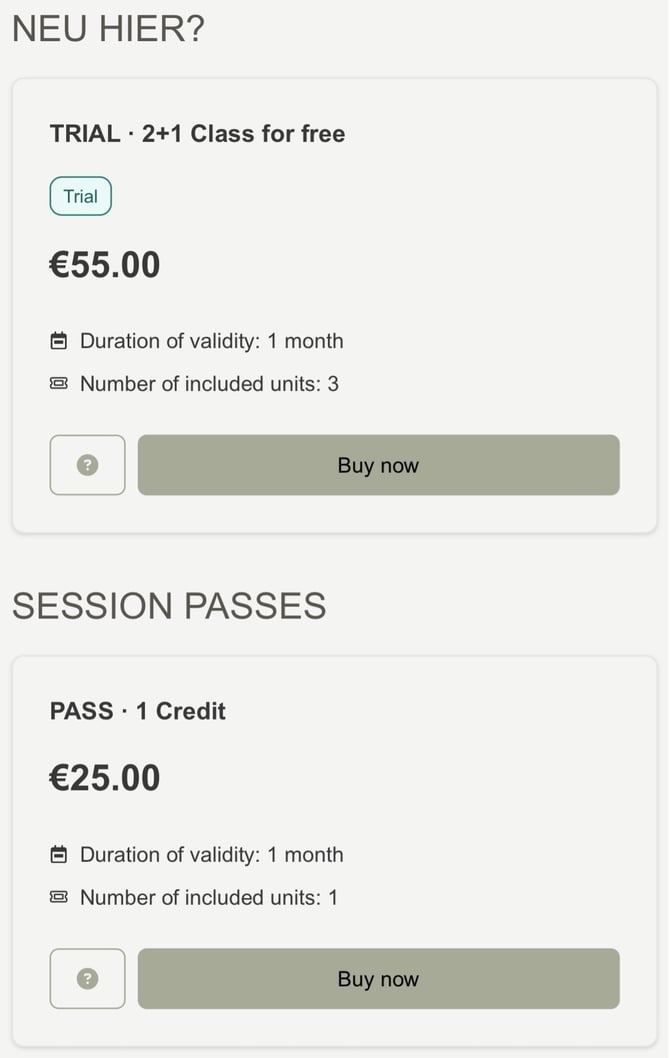
Here is how it looks like in practice: A customer asks on WhatsApp if you have a trial offer, instead of explaining where to find it you simply send a link - and they can buy the trial product right away.
 |
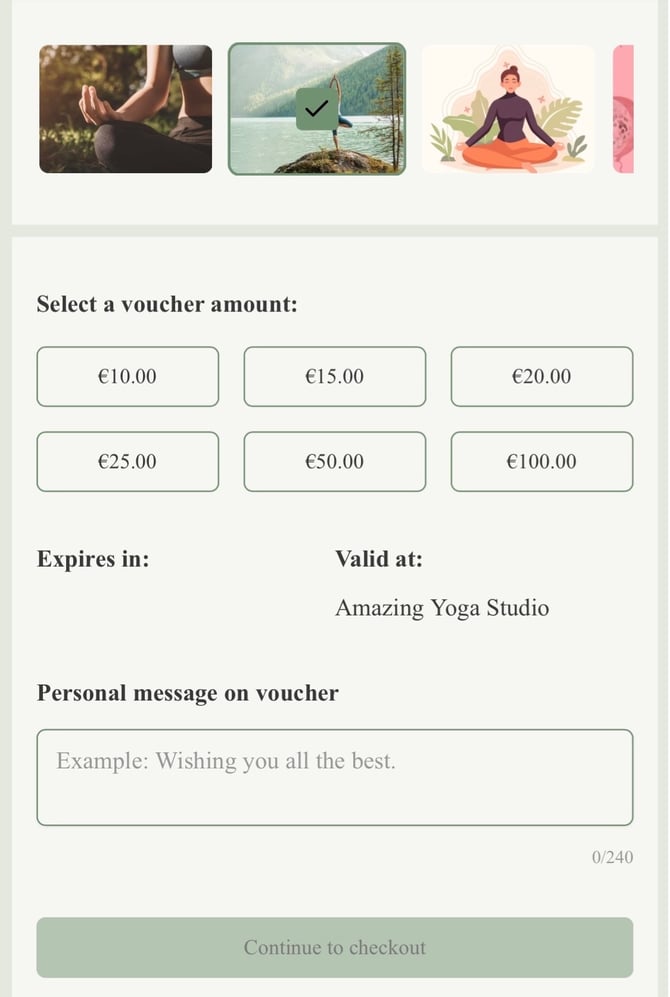
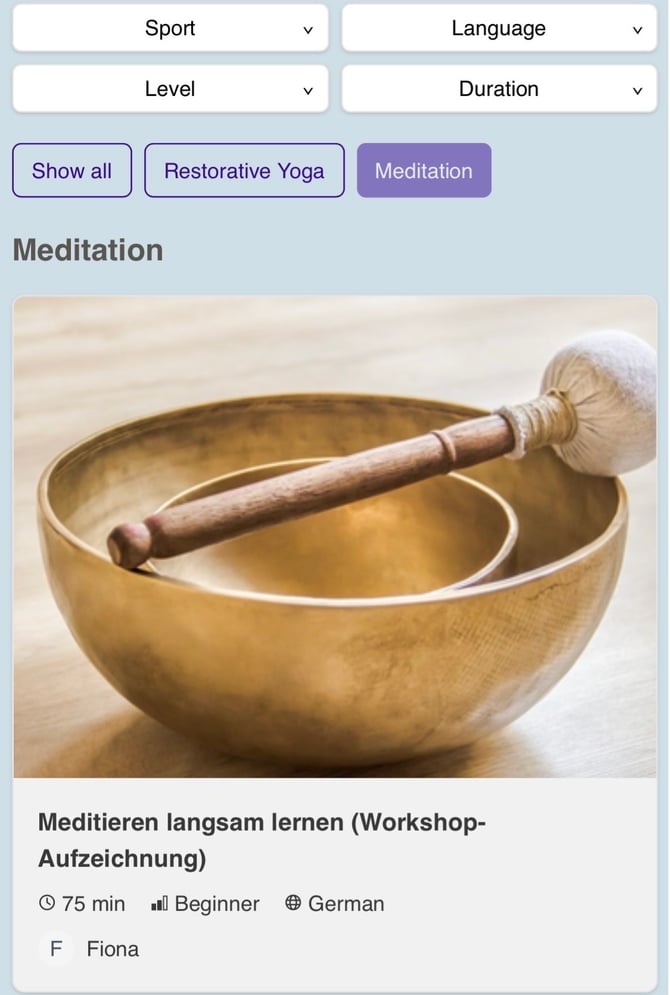
In your Eversports Manager, you can create small pages that show your offer – for example your class schedule, your prices or your vouchers. Each page has its own link that you can copy and share anywhere. When customers click on it, they can book or buy directly.
In Eversports these pages to display your offers are called widgets.
If you make changes in your Manager, e.g. add a new class or product, change the time of a class or cancel an appointment, the page updates automatically - always displaying the current version of your offers. You don't need to update or send a new link.
In this article you can find:
⚖️ Difference between your Eversports profile and your shareable links
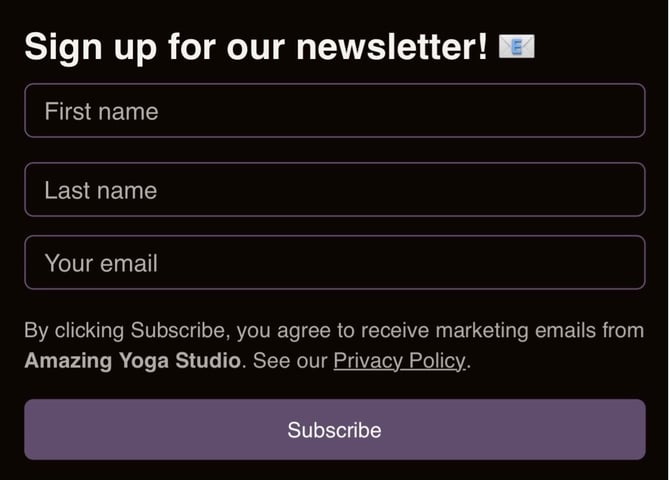
💡 What customers can do with your links
👀 Where you can find the shareable links
🎯 Where to share your links if you don't have a website
🌐 How to share your offer on your website
✅ Best practice examples
❓Frequently asked questions
📝 Related articles
⚖️ Difference between your Eversports profile and your shareable links
|
Your offers are also visible in your Eversports profile on eversports.com as well as the Eversports App, which can also be shared with a link. Both sharing your profile directly and sharing your offers with widgets can also be useful, but for different situation. |
|
|
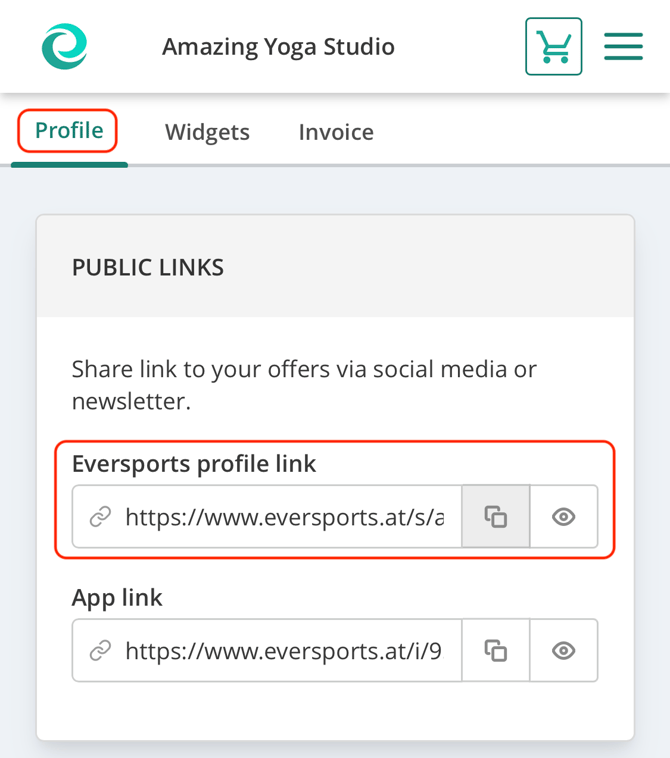
| Sharing your Eversports profile | Sharing your links (widgets) | |
| Best for | being found by new customers searching for classes near them | sending your customers to your offers directly |
| Where customers land | your studio detail page with pictures and description | directly on what your shared: your schedule, all products, trial offer, vouchers, etc. |
| Look | Eversports design | your own colours and logo (branding) |
💡 Recommendation:
Whenever you share a link - in a message on WhatsApp, in your Instagram profile or story, newsletter - use a widget link. Your customers land directly on your offer without having to look through other pages, and can book within a few clicks.
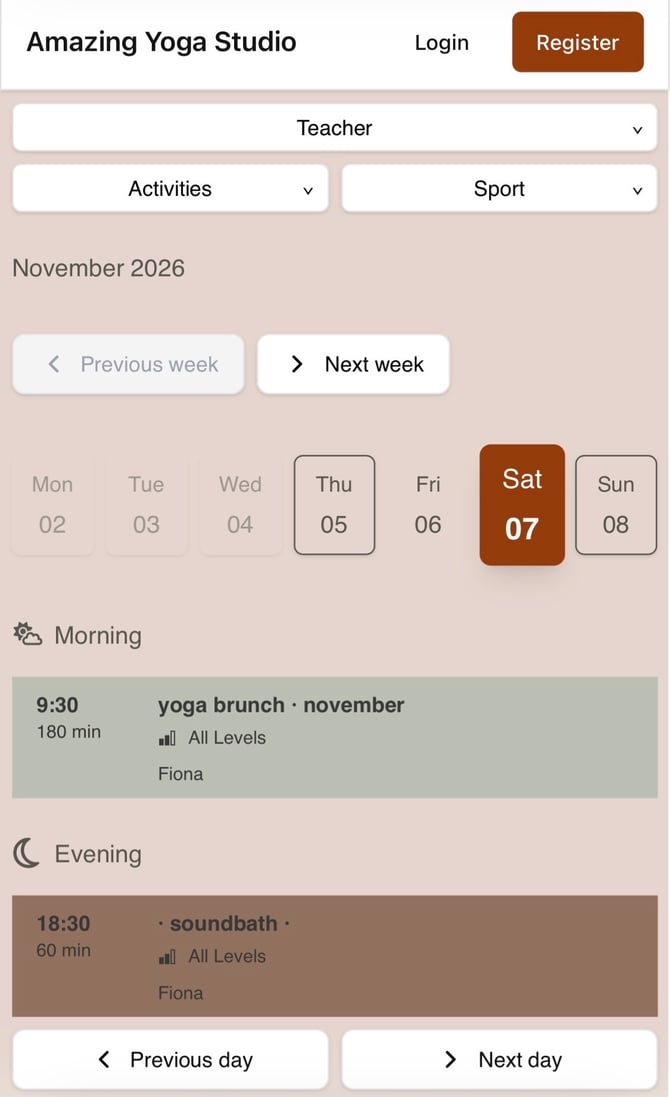
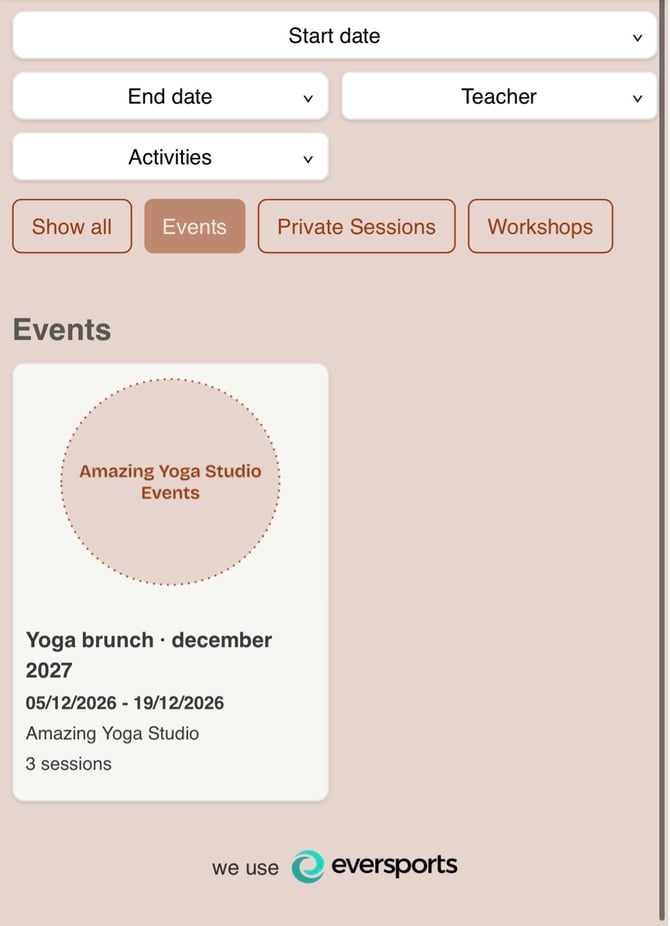
💡 What customers can do with your links
|
 |
|
 |
|
 |
|
 |
|
 |
|
 |
If you want to share all your offers with just one link you can create a widget overview → read more here.
💡 Recommendation:
For most types of widget you can create multiple different versions based on the filters you choose! Examples:
- Schedule widget for only one specific teacher
- Schedule widget for only one activity group
- Activities widget for only a certain time frame
- Price widget for a special service group (e.g. trial offer)
👀 Where you can find the shareable links
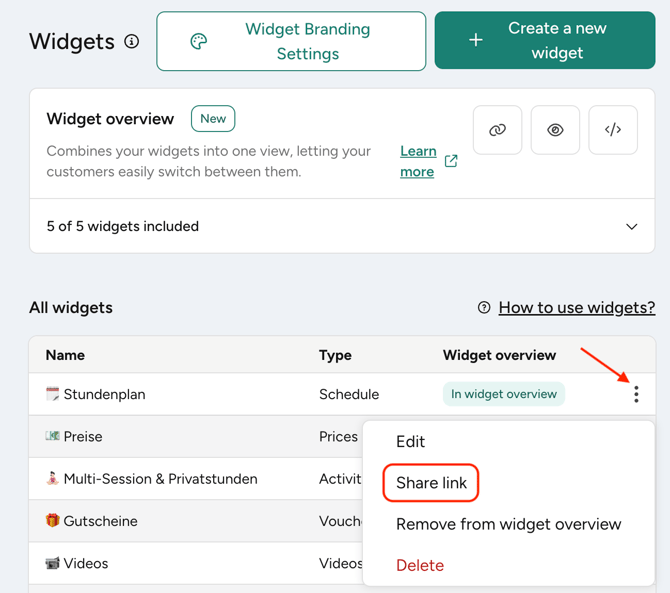
- Open Settings > Widgets to view all your widgets
If you have not created widgets yet, select "Create new widget". - For the page (widget) you want to share click on the three-dot menu (⋮)
- Select "Share link"
- Copy the first link ("Direct link to this widget on a separate page") by clicking on the copy-icon.
- Paste the link wherever you like
 |
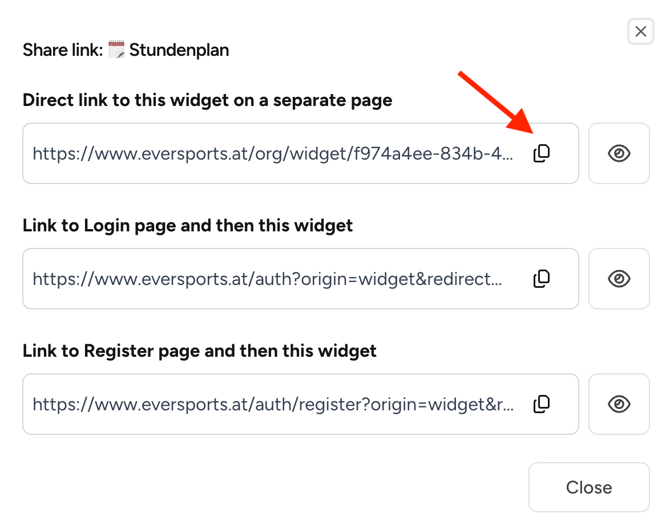 |
Asking yourself which of the three links you should share?
In most cases, use the first one. The two others are for special cases: they first ask customers to log in, or to create an account, before showing your page.
🎯 Where to share your links if you don't have a website
If you don't have a website that is no problem - you don't need a website to share your offers. Paste your links anywhere your customers already are:
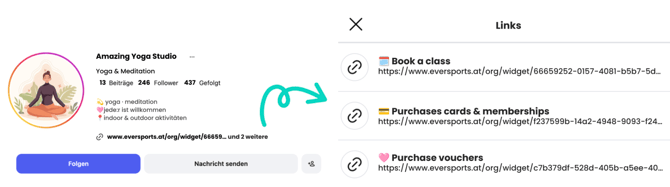
- Instagram or TikTok profile (bio) - add links for your schedule, prices and vouchers with clear names e.g. "Book a class"
 |
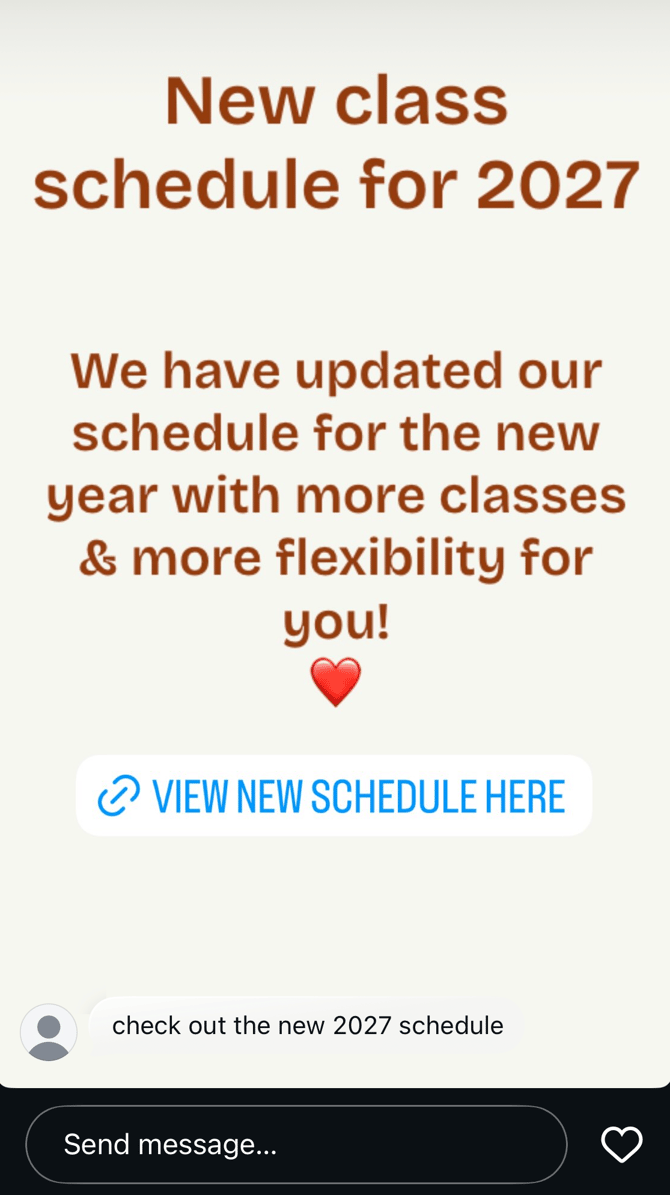
- Instagram story - add a link sticker when you talk about your new schedule or prices
 |
-
WhatsApp or direct message - reply to customer questions with the right link
Tip: save your most-used links as quick replies in WhatsApp Business. - Google Business profile - add your schedule link as your booking link, so people can book from Google Search and Maps
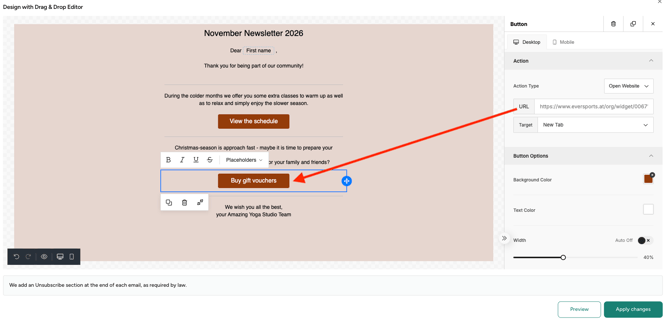
- Newsletter and email signature - paste the link in your text or behind a word like “Book now”. With the Communication extension, you can also add it as a button: paste your link in the button’s URL field
|
|
 |
- In-App messages - when sending In-App messages via the Eversports Manager, e.g about a quick schedule update, you can directly link your schedule
- Facebook page - use it for the action button on your page
- QR code – turn your link into a QR code (many free tools do this) and print it on a flyer, at your reception or in your changing room
Find more information about linking your widgets here, plus read how to add links in the email builder here.
🌐 How to share your offer on your website
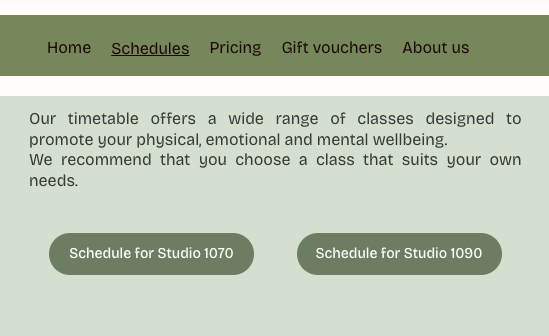
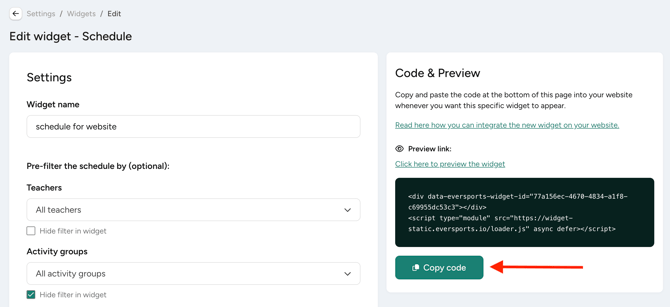
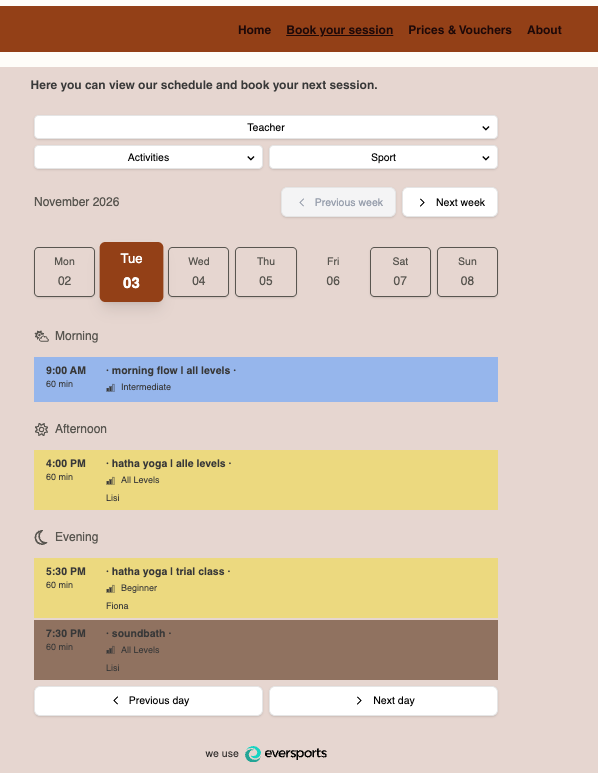
On your website you can use both widget links and hide them behind text, images, and buttons, as well as the HTML code to embed the widget directly on your website.
| Widget link in button: | ||
|
|
 |
| Widget code embedded: | ||
 |
 |
Find more information about embedding widgets on your website here.
✅ Best practice examples
For most types of widget you can create different versions based on the filters you choose. This way you can create multiple links so you can show and highlight your offers:
- Your full schedule with all your activities for our social media profile
- A schedule for one specific teacher so they can also share it on their own social media profile
- All your prices showcasing all products you offer so customers can compare
- Only your trial offers to share with new customers that contact you via social media
- All your vouchers for your newsletter before holiday season (e.g. Christmas)
- Only your private session offer for a dedicated space on your website
- Only your workshops or events to promote your special activities
- Only your memberships to send out with an automation a few days after a customer purchased a trial offer
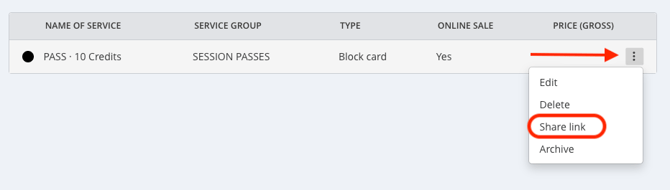
You can also copy and send a direct link for a specific product - e.g. your 10-unit block card. With this link your customers lands directly on the product and can buy it immediately.
❓Frequently asked questions
- Do my customers need to download an app?
No. The page opens in their browser or on their phone. - Do I need to send a new link when I change my schedule or prices?
No. The page always shows your current offer from Eversports Manager as the widget synchronises with your Eversports Manager.
Note: If you create a new service group or activity group which should be displayed on the page, then you have to add it to widget.
- Is it free or do I need an extension?
Yes, creating and sharing widgets is free for you - no need for an extension. As soon as you have access to your Eversports Manager you can create widgets in Settings > Widgets and share your online-available offers. - Can I only create one link for my schedule, prices, etc.?
No, for each widget you can create multiple versions (links) and set different filters in each. - Can I use my own colours and logo?
Yes. You can adapt the look of your pages in Widget Branding Settings.
📝 Related articles
- Learn more about widgets
- Learn how to optimise your customers booking experience with widgets
- Learn how to integrate widgets
- Learn how to use the widget overview
- Learn how to set up the widget branding to display your widgets in your brand colours
You have questions or need assistance with your setup? Then contact us via support@eversports.com